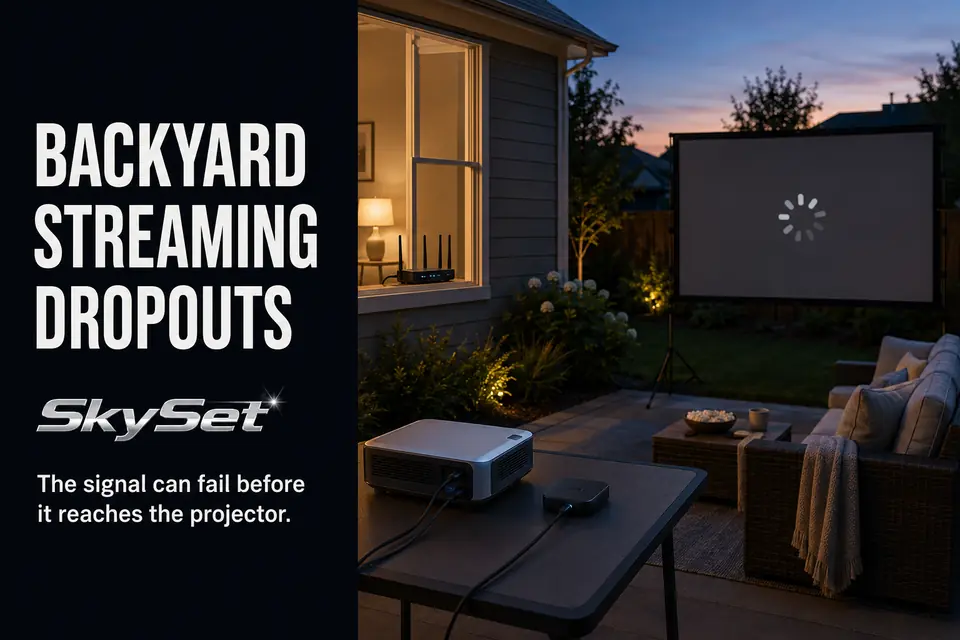
A movie can play cleanly in the kitchen and start buffering as soon as the streaming device moves outside. That change is the first useful clue: the problem may not be the internet entering the house, but the final wireless path leaving it.
The practical question is not whether Wi-Fi reaches the patio at all. It is whether the connection remains stable from the indoor router to the actual streaming device, in its final position, under continuous movie-night load. A phone showing several Wi-Fi bars beside the back door does not answer that question.
Treat streaming as one connection inside the complete backyard movie setup. Trace the signal to its weakest point, correct that point when practical, and prepare a fallback that does not depend on the same unstable route.
Router Distance to the Patio
Do not begin with a published router-range number. Begin by finding where continuous playback stops being reliable on your property.
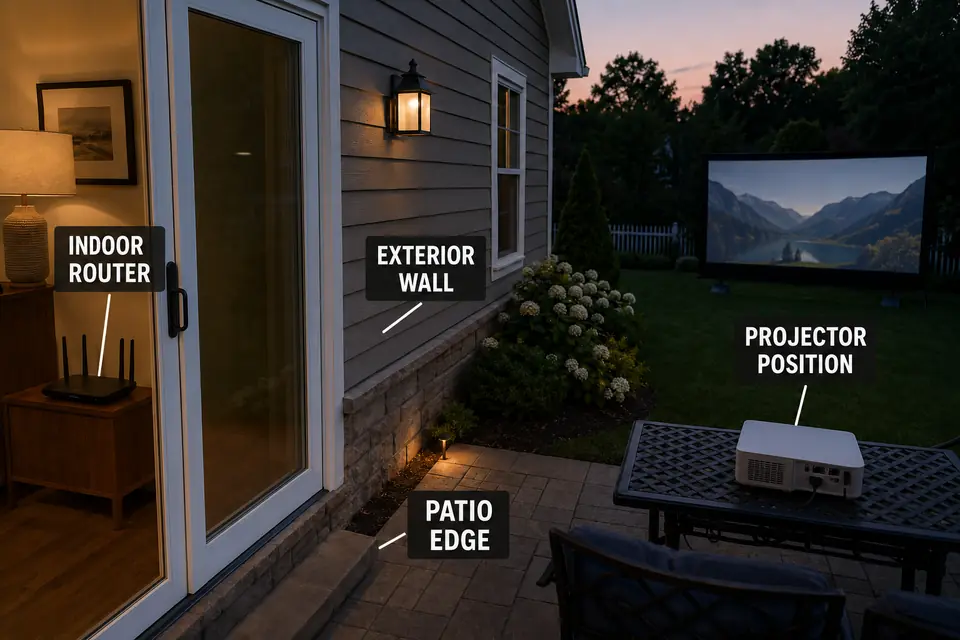
A router and projector separated by 45 feet of open space may communicate more reliably than devices 25 feet apart with an exterior wall, appliances, cabinetry, and metal-framed doors between them. Straight-line distance matters, but the route between the two devices usually matters more.
Use the same receiving device for a controlled comparison. Test near the router, on the interior side of the patio door, and at the projector’s final position. Keep the streaming service, title, and resolution unchanged. Switching from a streaming stick to a phone midway through the test makes the result less useful because the two devices may not receive Wi-Fi equally well.
Do not judge the connection by how quickly a menu or thumbnail opens. Those elements can load during a brief burst of connectivity. A movie requires sustained delivery. If playback is clean near the house but repeatedly lowers resolution or pauses at the projector, the outdoor endpoint is near or beyond the dependable part of the network.
Projector location can make that route harder than necessary. A table moved to the far side of the seating area may solve an image-alignment problem while adding distance and another obstruction to the Wi-Fi path. Review the broader outdoor projector placement problems before moving the entire setup solely to improve reception.
Keep the diagnosis relative to your property. Router design, neighboring networks, building materials, and device hardware prevent a universal outdoor range from being meaningful. Your threshold is the position where sustained playback becomes unstable—not a distance printed on a box.
Walls and Doors Between Signal and Projector
If performance collapses at the doorway, diagnose the barrier before blaming the remaining distance across the yard. That sudden change identifies a more useful boundary than the total router-to-projector measurement.
Exterior walls often contain more signal-obstructing layers than interior partitions. Masonry, metal components, foil-faced insulation, dense siding assemblies, and some coated glass can all make the route less favorable without making the patio appear far from the router.
Play the same segment immediately inside the closed door, immediately outside it, and then at the projector. If performance drops as soon as the receiving device crosses the doorway, the building envelope is likely more important than the last several feet across the patio.
Opening the door briefly can confirm the pattern. If playback improves, the barrier is affecting the route. That does not make an open door a dependable movie-night solution. Weather, insects, security, air conditioning, pets, and household noise turn it into a temporary diagnostic condition rather than a practical fix.
The stronger move is often a modest sideways adjustment that gives the receiving device a clearer relationship to a window or opening. Moving several feet directly toward the house may accomplish less if the same dense wall remains between the devices. Change one position at a time so the result remains readable.
Streaming Stick Placement
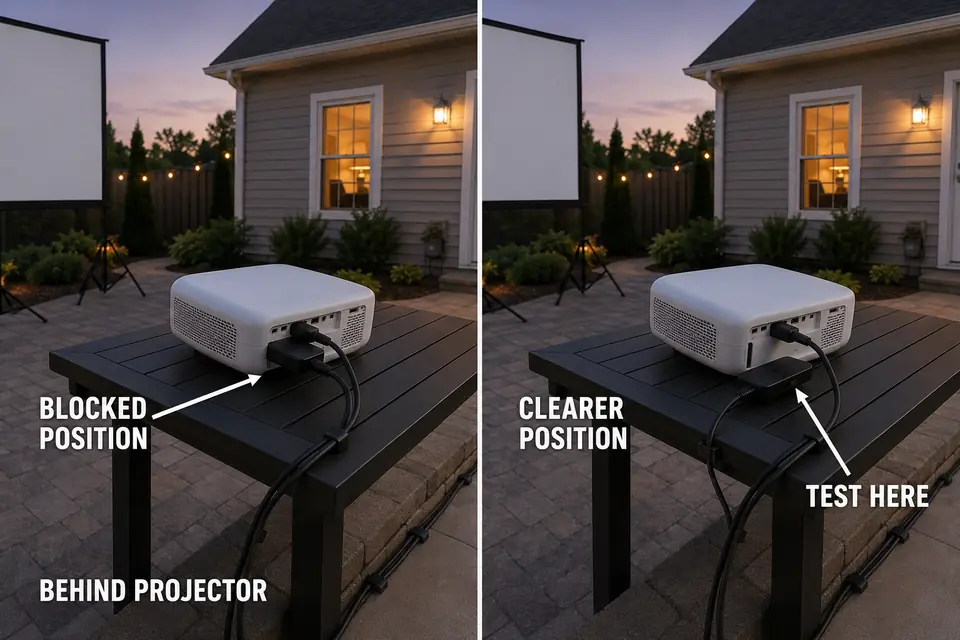
The receiver to diagnose is the streaming stick, not the phone in your hand. A phone held above the projector table may pass the test because it is higher, less obstructed, and equipped with different wireless hardware.
Test the stick after the projector, stand, power connections, and other equipment are in their final locations. A device pressed against the projector body, hanging beneath a metal table, or sealed inside a box may perform differently from one positioned a short distance away with a clearer route toward the house.
Test the receiver, not the nearby phone
Begin playback with the stick in its intended position. Move only the stick or its compatible short connection—not the projector—and replay the same segment. If the stream becomes stable, endpoint obstruction was contributing to the failure.
Keep any adjusted position ventilated and protected from moisture. Do not seal the device inside a container merely to make the table look tidy. That can exchange a Wi-Fi problem for trapped heat while still leaving the outdoor connections poorly protected.
Repositioning may also change where the device receives power. Route the connection along a stable table surface and protected patio edge using the same principles applied to safe outdoor AV cable routes. Better reception is not an improvement if the new cable position creates a trip hazard.
Retest after the complete table arrangement is restored. A position that works while the projector is absent may fail after the projector body, stand, and other equipment return. Only the final configuration counts.
Phone Hotspot Backup
A hotspot is useful only if it provides a genuinely separate, tested route. It bypasses the home router and exterior wall, but it still depends on cellular reception, hotspot permissions, available data, device power, and local network demand.
Connect the actual streaming stick to the hotspot and play the intended service. Successful playback on the phone itself proves that the phone can receive and display the content; it does not verify the hotspot-to-streaming-device connection.
Check the hotspot settings and charging arrangement before guests arrive. If the phone must remain connected to power, include it in the backyard projector power setup rather than stretching a separate cord across the seating route. Keep it dry, ventilated, and positioned where cellular reception remains stable.
Do not promote the hotspot to primary backup status after a brief menu test. Mobile congestion, overheating, power-saving settings, or a falling battery can interrupt it later. If both live connections remain marginal, remove live streaming from the event.
Offline Downloads
Offline playback is not another network fix; it removes the network from the movie. That makes it the strongest fallback when both home Wi-Fi and cellular streaming remain questionable.
Compatibility is the real boundary. A service may support downloads on a phone or tablet but not on the streaming stick connected to the projector. Verify that the service, playback device, and projector connection support the complete offline route before relying on it.
Complete the download on dependable indoor Wi-Fi. Check the available storage, selected audio, subtitles, account authorization, and any rental or expiration window. Wait until the application confirms that the entire title is stored.
Then disable Wi-Fi and cellular data and open the movie. Play enough to confirm that the device is using the downloaded file rather than silently returning to a live stream. An unfinished, expired, or unverified download is not a backup.
When sensible position changes fail to stabilize the patio connection, stop troubleshooting for movie night. A verified local copy is more dependable than repeatedly restarting a marginal stream after the audience is seated.
Test Stream Before Dark
A final test counts only when it reproduces the actual playback chain. Put the projector, streaming stick, hotspot phone, power connections, and audio route in their final positions, then use the same platform and resolution intended for the movie.
Run a continuous 15- to 20-minute segment. A trailer is too short to expose repeated buffering, gradual resolution reduction, device heat, or a connection that weakens when other household traffic increases. If people inside will be gaming, watching television, or making video calls during the event, include comparable activity during the test.
This test covers streaming reliability only. Use the broader backyard theater planning checklist separately for screen stability, seating, weather, sound, and the rest of the setup.
Run the complete playback chain
- Start the intended movie through home Wi-Fi with the streaming device in its final position.
- Play a continuous 15- to 20-minute segment while watching for pauses, resolution changes, disconnects, and audio interruption.
- Switch the streaming device to the prepared phone hotspot and replay part of the same segment.
- Disable Wi-Fi and cellular data, then open and play the downloaded copy.
- Choose the primary playback path and leave the verified fallback ready before dark.
Six-check stream readiness test
- The streaming device was tested in its final physical position.
- The selected movie played continuously at the intended resolution.
- Normal household network activity was present during the test.
- The hotspot connected to the actual streaming device.
- The offline copy opened with all network connections disabled.
- Power, ventilation, and cable placement remained safe throughout the test.
A strong Wi-Fi icon is not the finishing standard. The setup is ready when one connection has passed a sustained test from the final device position and one independent fallback has also played successfully. If home Wi-Fi fails that standard, choose the hotspot or offline copy before dark instead of continuing to troubleshoot during the movie.
For neutral guidance on evaluating router placement and wireless coverage, see CISA’s Home Network Security guidance.